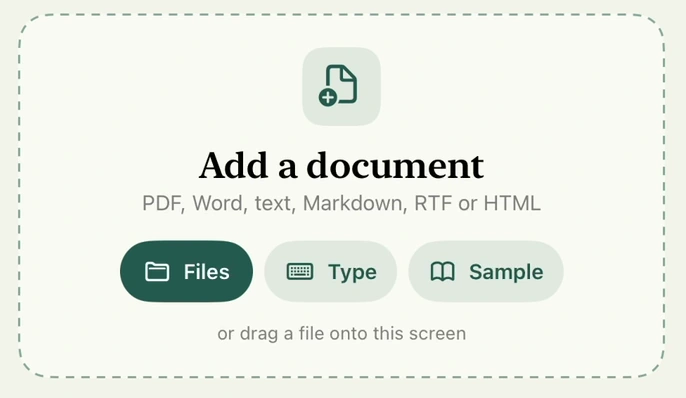
Bring your text.
Open a text-based PDF or Word document from Files, share a document from another app, or paste a script.
 PageSpoken
Launch status
For iPhone and iPad
Turn a PDF, Word document, or a few lines of text into an audio file you can keep. Listen with your device’s voice or choose from 30 AI narrators.
Coming to the App Store. Try the demos here.

The Last Ferry
Read by Rachel · Premium AI narrator
Inside PageSpoken
Follow a handout from Files to a finished M4A. You choose the words that go in and the voice that reads them.
Open a text-based PDF or Word document from Files, share a document from another app, or paste a script.
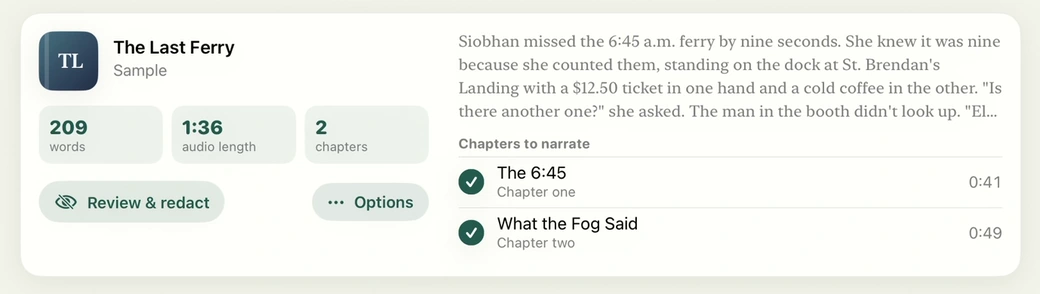
Pick whole chapters or set a target listening time. Leave out a paragraph or remove a name before narration.
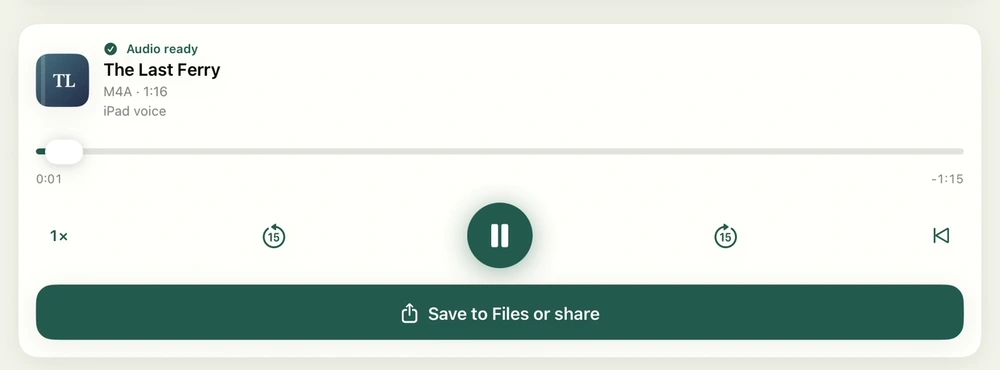
Preview a voice, then tap Create Audio. Play the finished recording in PageSpoken or save it for your slides, lessons, or commute.
Follow the taps from importing the handout to playing its audio in Files. The free iPhone voice makes the demonstration file. Rachel reads the story excerpt.
The narrator library
Hear the same passage from The Last Ferry in each of PageSpoken’s 30 Standard AI voices. In the app, you can audition Premium delivery too, or use a free voice installed on your device.
Read along with the storyVoice audition
“Dr. Okafor arrived at 10:30 with two umbrellas and no explanation.”
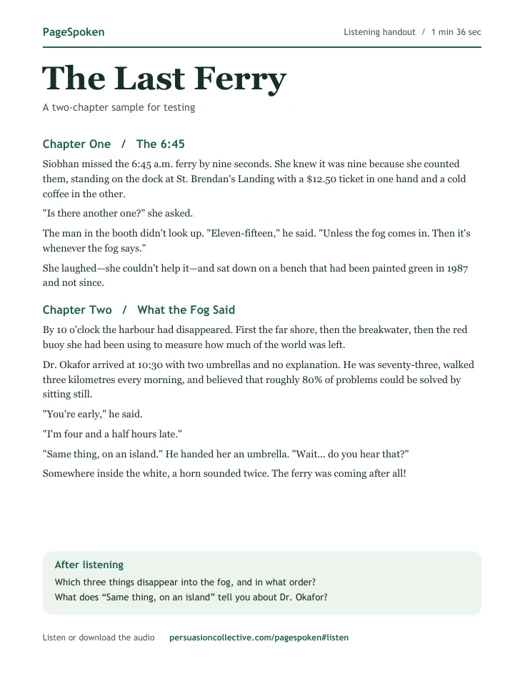
A listening exercise
Siobhan misses the ferry by nine seconds. Hear what happens next, then read the two short chapters on the handout. Two discussion questions make it easy to use in a class or a reading group.
Before you start
Use a voice installed on your iPhone or iPad to turn a document into audio, even offline. You can play the result in PageSpoken, save it to Files, and share it.
Preview Standard or Premium delivery. Choose audiobook style for a chapter or presentation style for a slide deck, then adjust pace and tone. You see the word estimate before you create audio. Each word uses one credit of the chosen quality. Saved recordings replay freely.
Open Word (.docx), PDFs with selectable text, plain text, Markdown, RTF, and saved HTML. You can also type directly or paste a passage. Chapter selection and redaction let you decide what gets read.
Device voices read on your iPhone or iPad. If you choose AI narration, PageSpoken asks before sending the selected text for processing. You can remove names and exclude paragraphs first. Read the privacy policy.
Yes. PageSpoken creates one M4A file you can play in Files, send to a collaborator, or add to a slideshow or video editor. You can also listen in the app with speed and lock-screen controls.
PageSpoken for iPhone and iPad
PageSpoken is awaiting its App Store release. You can listen to the recordings here today.